 Pdf Tools
PDF to image: save PDF pages as PNG on your phone
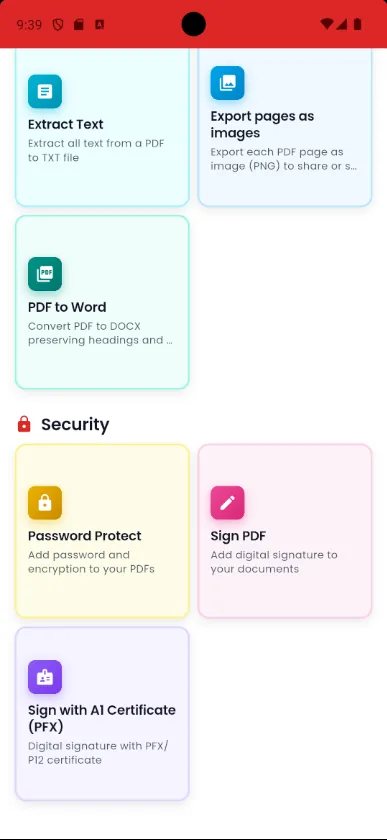
Sometimes you need a PDF page as an image: to post it, send it as a photo on WhatsApp or drop it into a presentation. In Pdf Tools, Export pages as images creates a PNG of each page.
Each image can be shared or saved on its own, and everything is done on the device.
Get it on Google Play
Free for Android 7.0 or later
When to use it
- You want to post a page of a PDF on social media.
- The recipient will open it on a phone, where a picture is easier to view.
- You need to run OCR on a scanned PDF: export the page as an image first.
How to do it, step by step
- Open Pdf Tools and tap Export pages as images.
- Pick the PDF.
- Wait while an image is created for each page.
- Share or save the images you want.
Why do it with Pdf Tools
- One PNG image per page
- Share each page separately
- No upload and no internet
- Free and ad-free
Phone app vs. PDF website
| Pdf Tools (app) | PDF websites, in general | |
|---|---|---|
| File upload | No: everything happens on the device | The file is uploaded to the site's server |
| Internet | Not needed | Needed for the whole process |
| Ads | None | Varies from site to site |
| Sign-up | Not required | Some require it for extra features |
| Usage limits | No daily limit | Many limit use on the free plan |
Good to know
Each page becomes a PNG image 1024 pixels wide. Photos embedded in the PDF are not extracted separately: the whole page becomes an image.
Frequently asked questions
How do I convert a PDF to an image on my phone?
In Pdf Tools, tap Export pages as images, pick the PDF and share or save the images.
What format are the images in?
PNG, 1024 pixels wide.
Can I extract only the photos inside the PDF?
No. Each whole page becomes an image.
Get Pdf Tools for free
No ads, no sign-up and no uploading your files to the internet.
Get it on Google Play