 Pdf Tools
Sign a PDF with a .pfx or .p12 digital certificate on Android
Pdf Tools lets you sign a PDF with your software digital certificate (also called an A1 certificate) without a computer. Pick the .pfx or .p12 file, enter the certificate password and the app applies a cryptographic digital signature (CMS/PKCS#7 with SHA-256).
A stamp with the holder's name and the date appears on the document. You can also use a certificate already installed on Android. The certificate and its password stay on the device: nothing is sent to a server.
When to use it
- You have a software certificate file (.pfx or .p12) and want to sign contracts without turning on a computer.
- You need to return a digitally signed document while away from the office.
- You would rather not install signing software on a PC.
- You do not want to upload your certificate to a third-party website.
How to do it, step by step
- Copy your certificate file (.pfx or .p12) to the phone, or install it on Android.
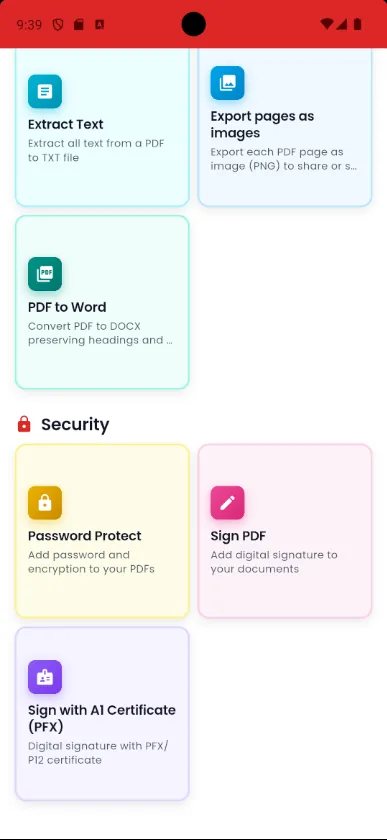
- Open Pdf Tools and tap Sign with A1 Certificate (PFX), or use the same option in the tools menu of an open PDF.
- Choose the certificate and enter its password.
- Save the signed PDF.
Why do it with Pdf Tools
- A real digital signature with SHA-256
- Works with .pfx/.p12 files or certificates installed on Android
- Certificate and password never leave the device
- No computer or extra software needed
Phone app vs. PDF website
| Pdf Tools (app) | PDF websites, in general | |
|---|---|---|
| File upload | No: everything happens on the device | The file is uploaded to the site's server |
| Internet | Not needed | Needed for the whole process |
| Ads | None | Varies from site to site |
| Sign-up | Not required | Some require it for extra features |
| Usage limits | No daily limit | Many limit use on the free plan |
The signature uses CMS/PKCS#7 with SHA-256 and does not include a trusted timestamp (TSA), so it does not follow the PAdES standard. If an organization requires PAdES or a qualified signature, check first that it accepts this type. To copy the certificate to your phone, see How to use a .pfx digital certificate on Android.
Frequently asked questions
Does it work with a token or smart card certificate?
No. The app uses software certificates, as .pfx or .p12 files or installed on Android.
Is my certificate sent anywhere?
No. The certificate and password are used only on the device, at the moment of signing.
Where does the signature appear in the PDF?
A stamp with the holder's name and the date goes in the bottom-right corner of the last page. The digital signature is embedded in the file, and readers such as Adobe Acrobat show it in the signatures panel.
Which certificates does it work with?
Software certificates in a .pfx or .p12 file, or certificates installed on Android. You need to know the certificate password.
Does the signature follow the PAdES standard?
No. It is a CMS/PKCS#7 signature with SHA-256, without a timestamp. Check with the recipient that this format is accepted.
How do I copy the .pfx file to my phone?
By USB cable, personal cloud storage or by emailing it to yourself. The step-by-step guide, with security tips, is in How to use a .pfx digital certificate on Android.
How do I check the signature?
Open the signed PDF in Adobe Acrobat Reader and look at the signatures panel.
Do I need internet to sign?
No. Signing happens on the device.
Guides
More tools in the app
Get Pdf Tools for free
No ads, no sign-up and no uploading your files to the internet.
Get it on Google Play